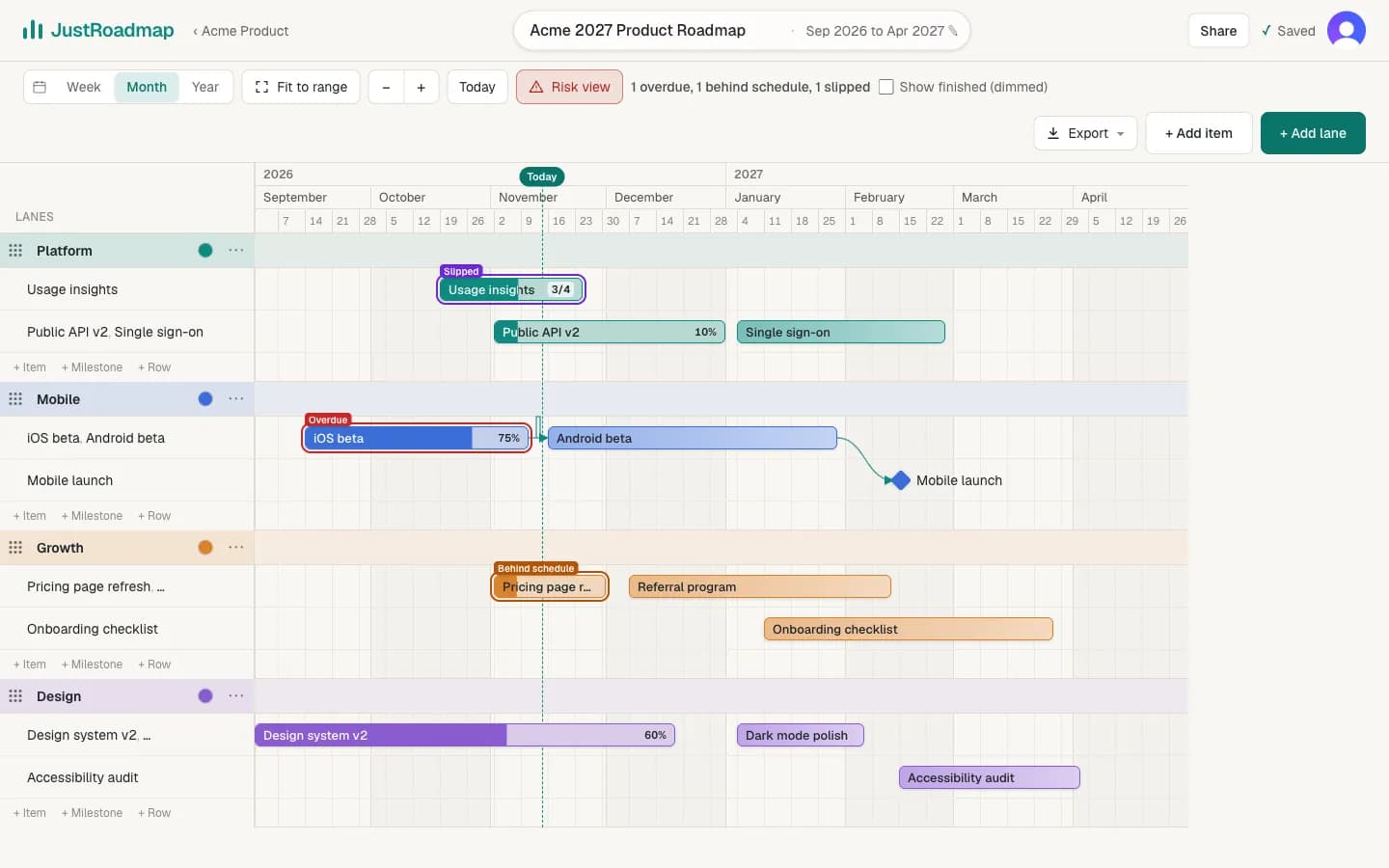
How it works
Press Risk view in the editor toolbar to see only the work that still needs attention. Finished items (progress at 100%, or every checklist step done) are hidden; tick Show finished (dimmed) to keep them on screen, faded. Everything left is checked against today's date, and items that need attention get an outline and a label.
The four labels
- Overdue: the end date has passed and the item isn't finished. Milestones count too, until you mark them reached.
- Behind schedule: much more of the time has gone than the work done (25 points or more, for example 60% of the time and 30% done).
- Slipped: the end date is later than first planned. Each item remembers its planned end; use Reset baseline in the item panel after you agree a new plan.
- Blocked: it depends on an unfinished item that ends after this one starts.
Counts, hints and exports
The toolbar shows a count, such as “3 overdue, 2 slipped”, and hovering a label explains it. Risk view stays on for that roadmap in your browser until you turn it off, and exports show the same view, so you can drop it straight into a status update. Viewers can use Risk view too.
Progress comes from the item panel: set a percentage, or add a checklist and let it work the percentage out. See item details and progress.