Features
Everything you need to plan on a timeline
JustRoadmap does one job: it puts your work on a timeline so you can see the plan and change it quickly, on your own or with your team. Free to use while we’re getting started.
The editor
Plan on a timeline you can drag
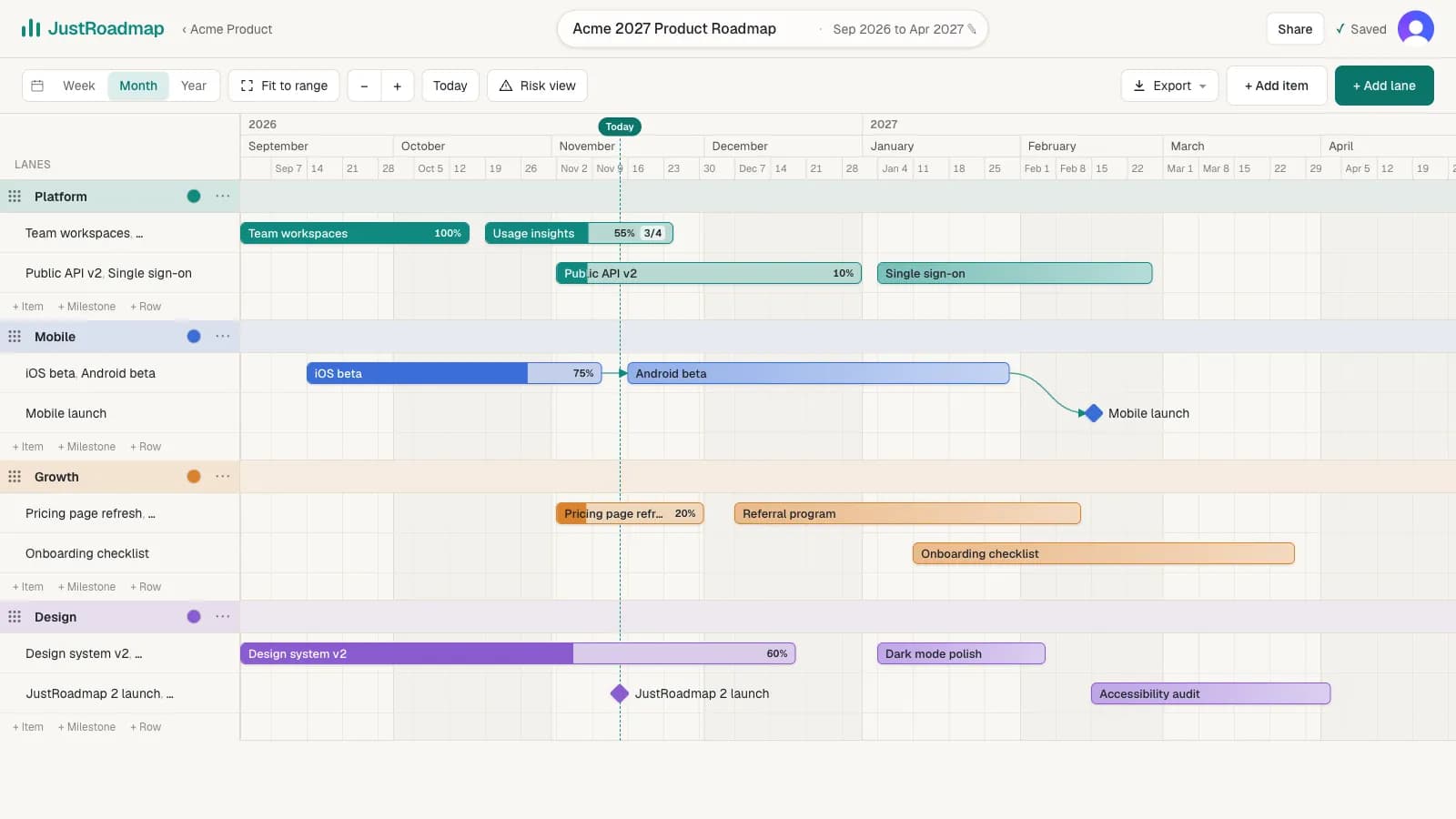
Lanes, rows, milestones and dependencies on a Week, Month or Year timeline. Drag a bar to move it, pull an end to change its dates, and every change saves on its own.
Priority
Make the important work stand out
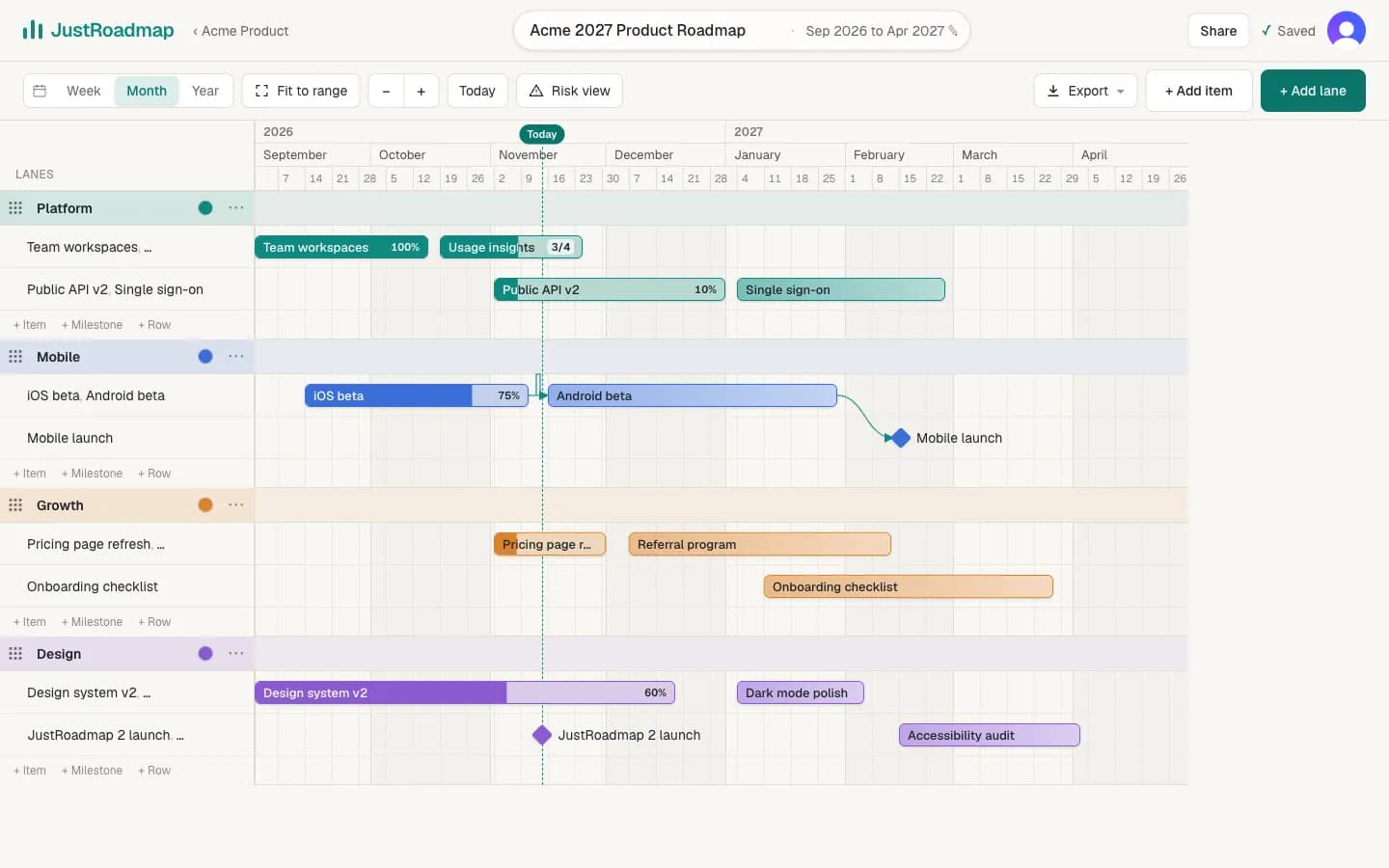
Mark an item or milestone High, Medium or Low in the details panel. A small tag on the bar shows what matters most, on screen and in exports.
Status and health
See the health of the whole roadmap
Mark work On track, At risk or Off track. A colored dot shows on each bar, and the toolbar sums it up so you know where things stand at a glance.
Item owners
Know who owns each piece of work
Type who owns an item, or pick a member of your workspace. If that member leaves, the item keeps the name and the link to them is removed.
Risk flags
Flag a risk before it becomes a slip
Flag an item as a risk and add a short note on what could go wrong. The flag shows on the bar, and the note is right there in the item panel.
Milestones
Milestones with guide lines
Mark launches and deadlines as milestones and link work that has to finish first. A faint dashed line runs down from each one, so you can see what lands before or after it.
Days and weekends
Zoom in to days, with weekends shaded
Zoom in and the header switches to individual days, with weekends shaded. Hover a day to see its full date, like Mon, Nov 30, 2026.
Team workspaces
Plan together, with the right role for everyone
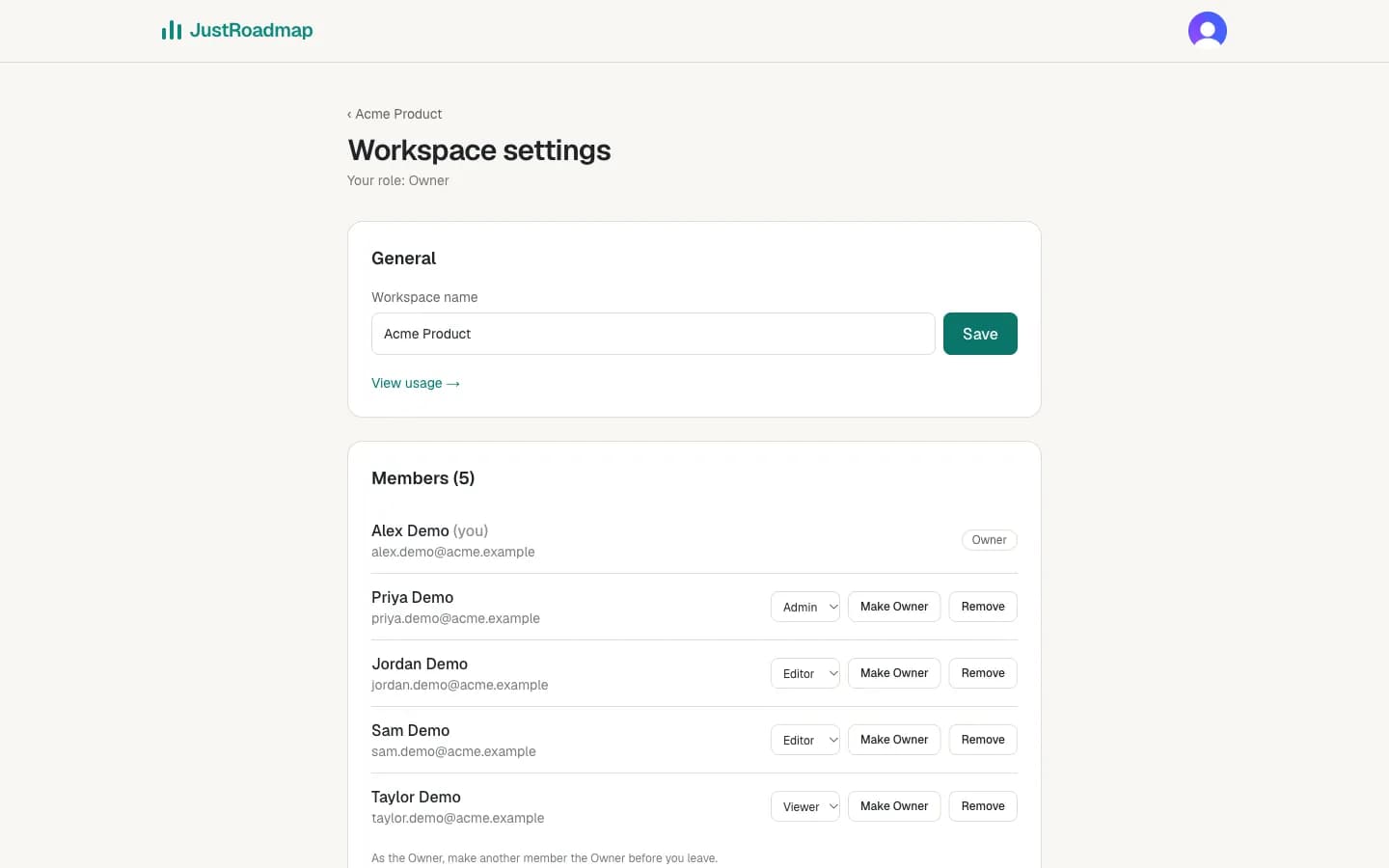
Invite people by email or link as Owner, Admin, Editor or Viewer. Roles are checked on our servers on every request, not just hidden in the page.
Personal to team
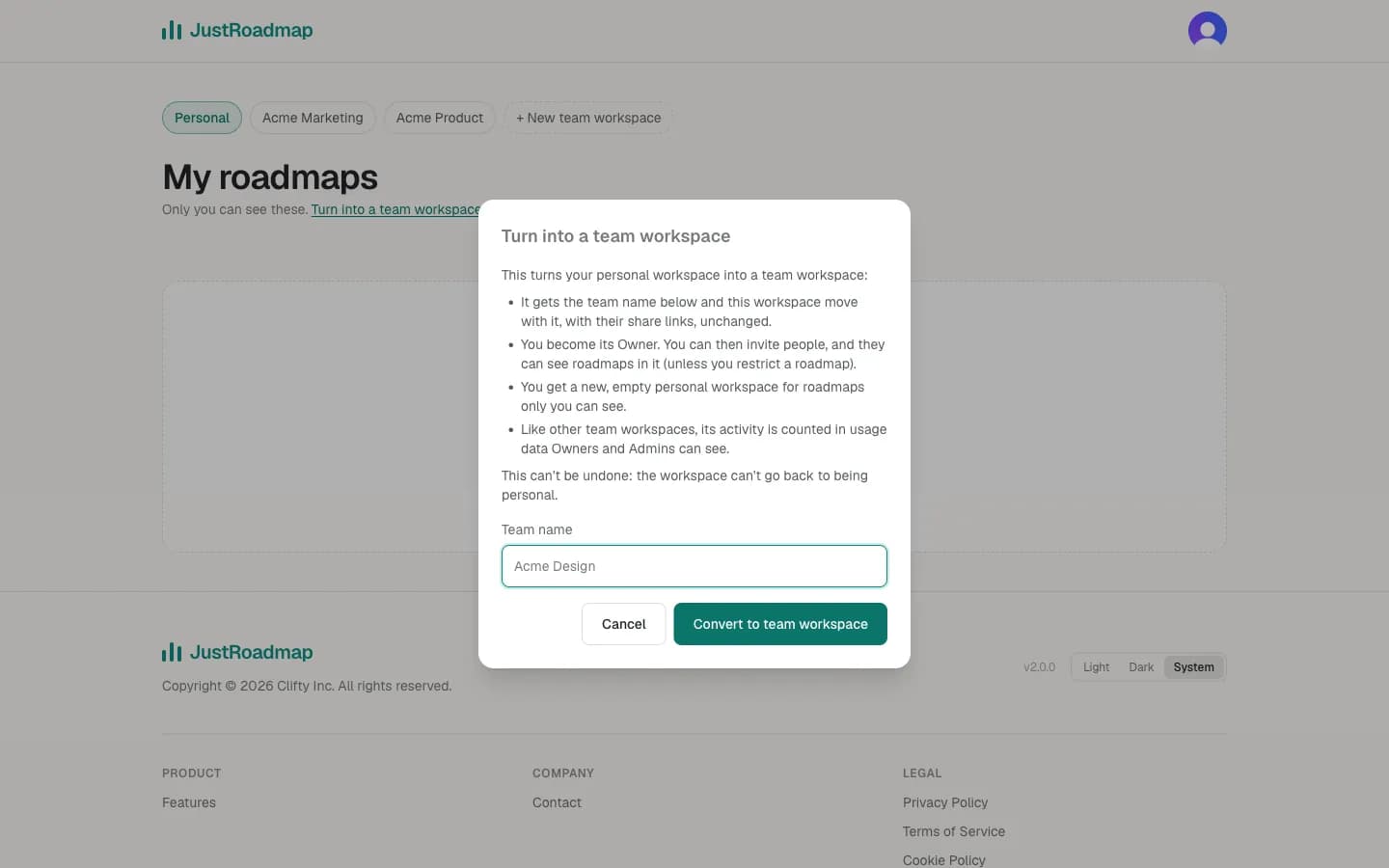
Turn your personal workspace into a team
Already planning on your own? Name the team and your roadmaps, share links and embeds come with it unchanged. You get a fresh personal workspace too.
View-only access
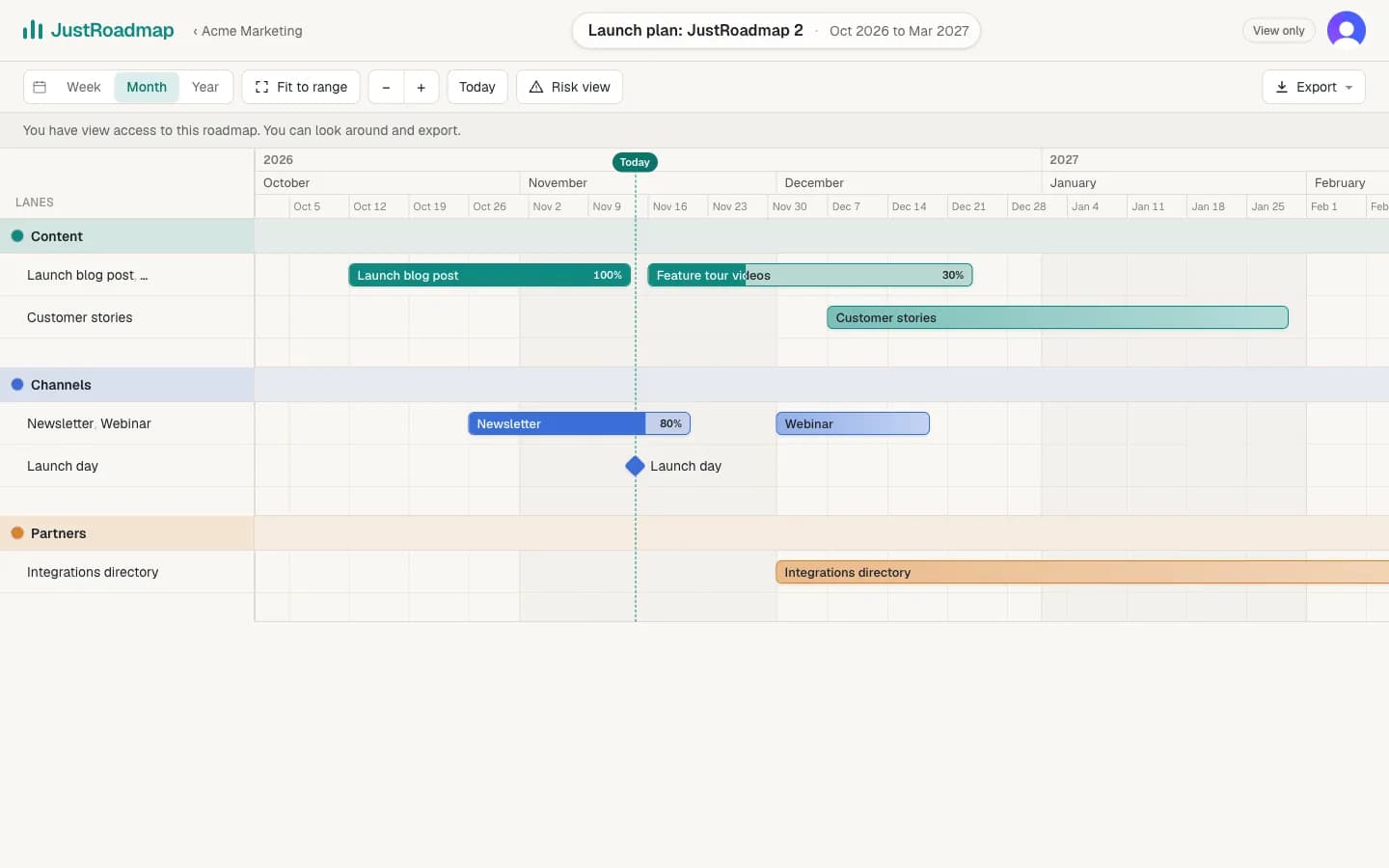
Let people look without changing anything
Viewers, and anyone you give Can view on a roadmap, get a read-only editor: they can look around, open item details, use Risk view and export.
Share links
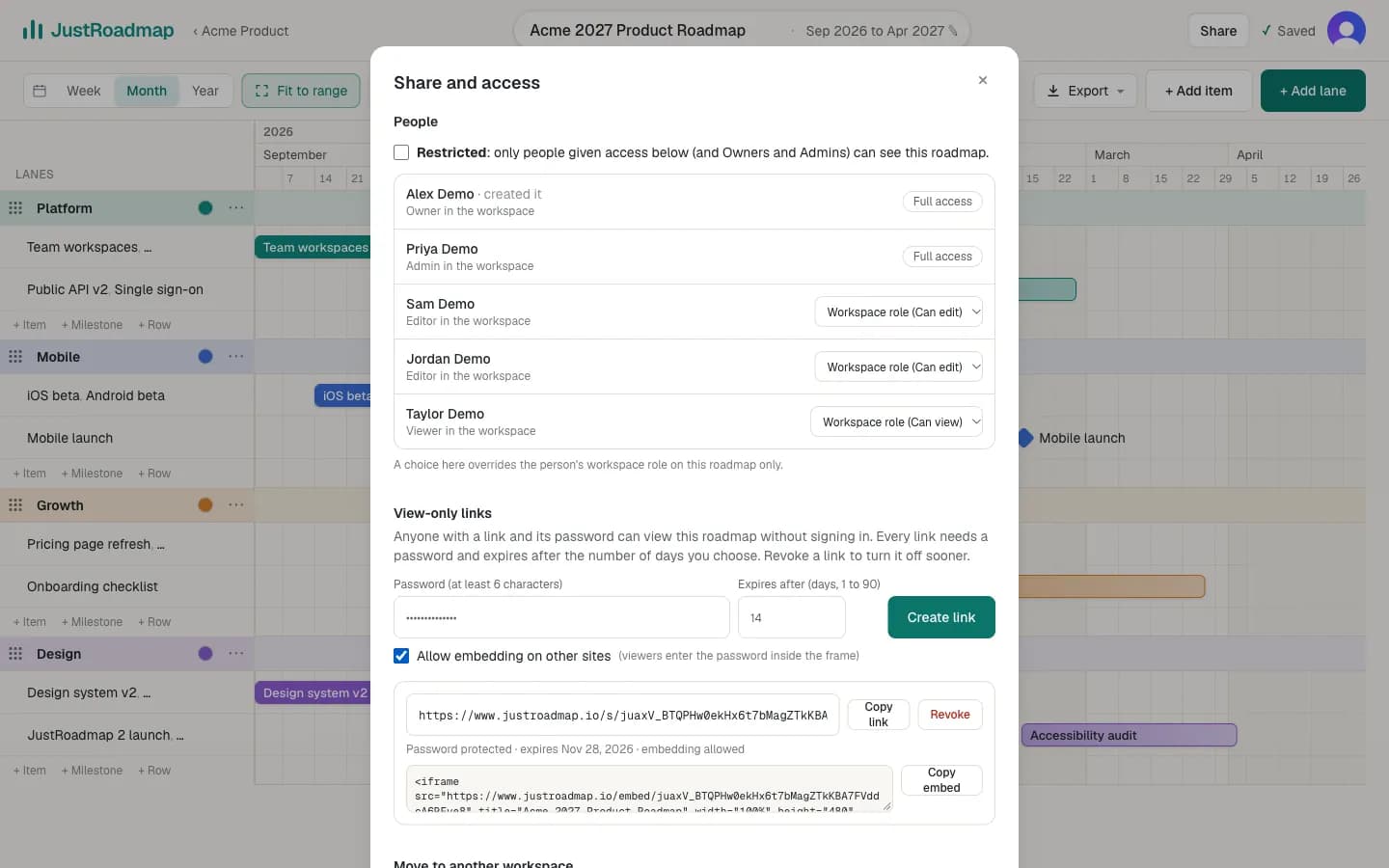
Share links with a password and an expiry
People with the link and its password can view the roadmap without signing in. Every link expires after 1 to 90 days, and Revoke turns it off straight away.
Embeds
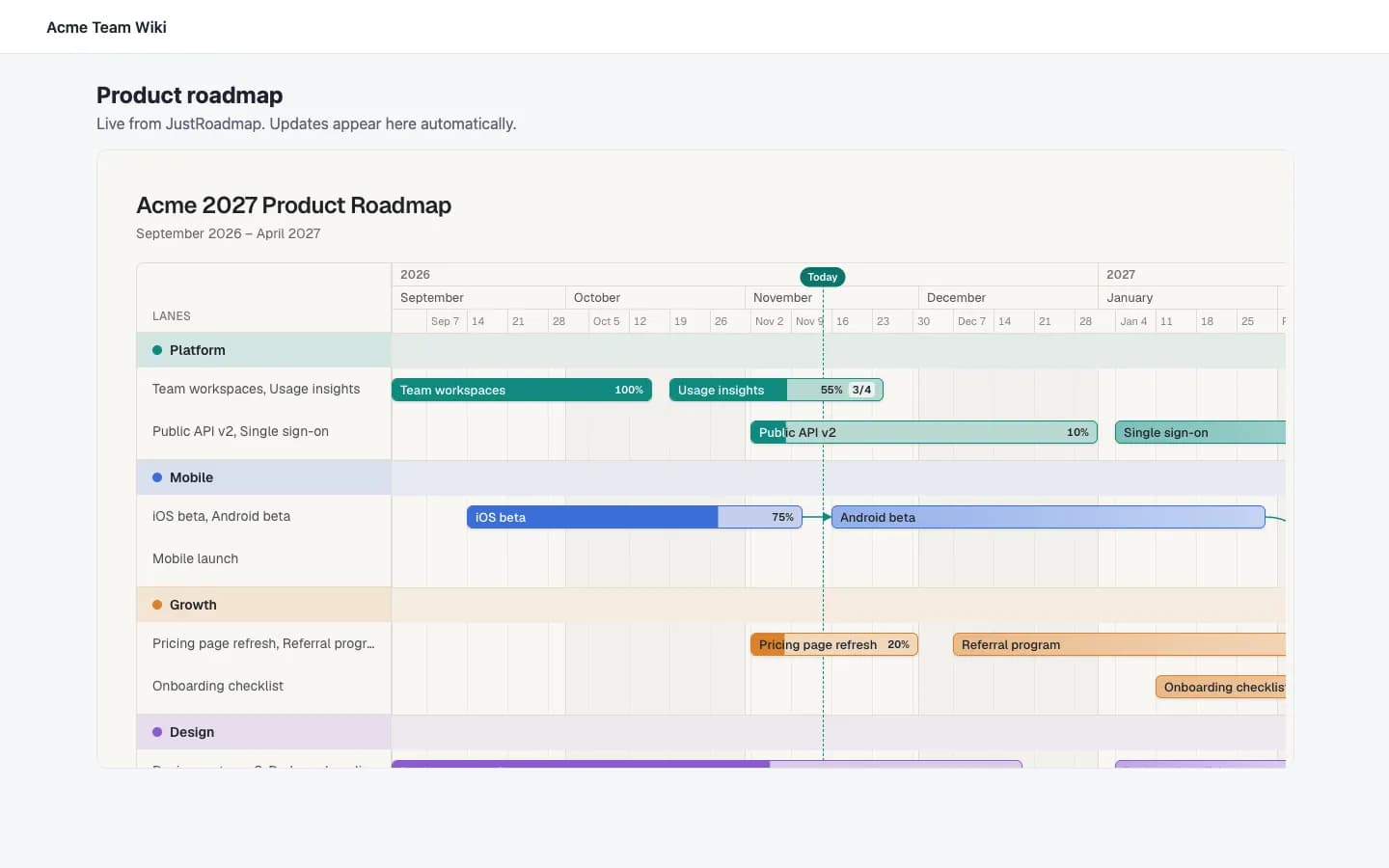
Put a live roadmap in your wiki or docs
Tick Allow embedding to get an iframe snippet. Viewers enter the password inside the frame, and the embed ends when the link does.
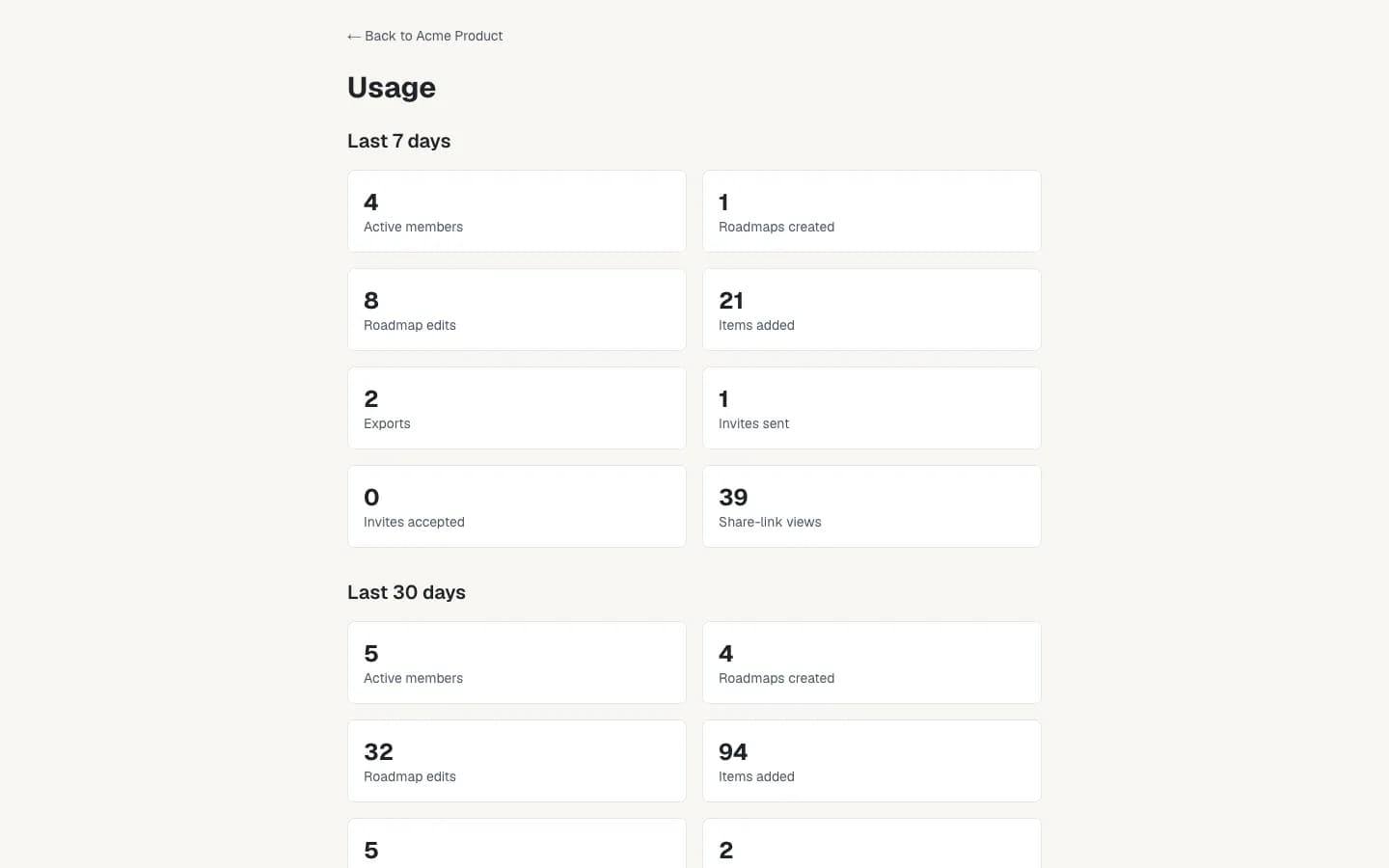
Usage insights
See how your team uses its roadmaps
Owners and Admins see rolling 7- and 30-day activity for a team workspace. Only counts are kept, never roadmap content.
Risk view
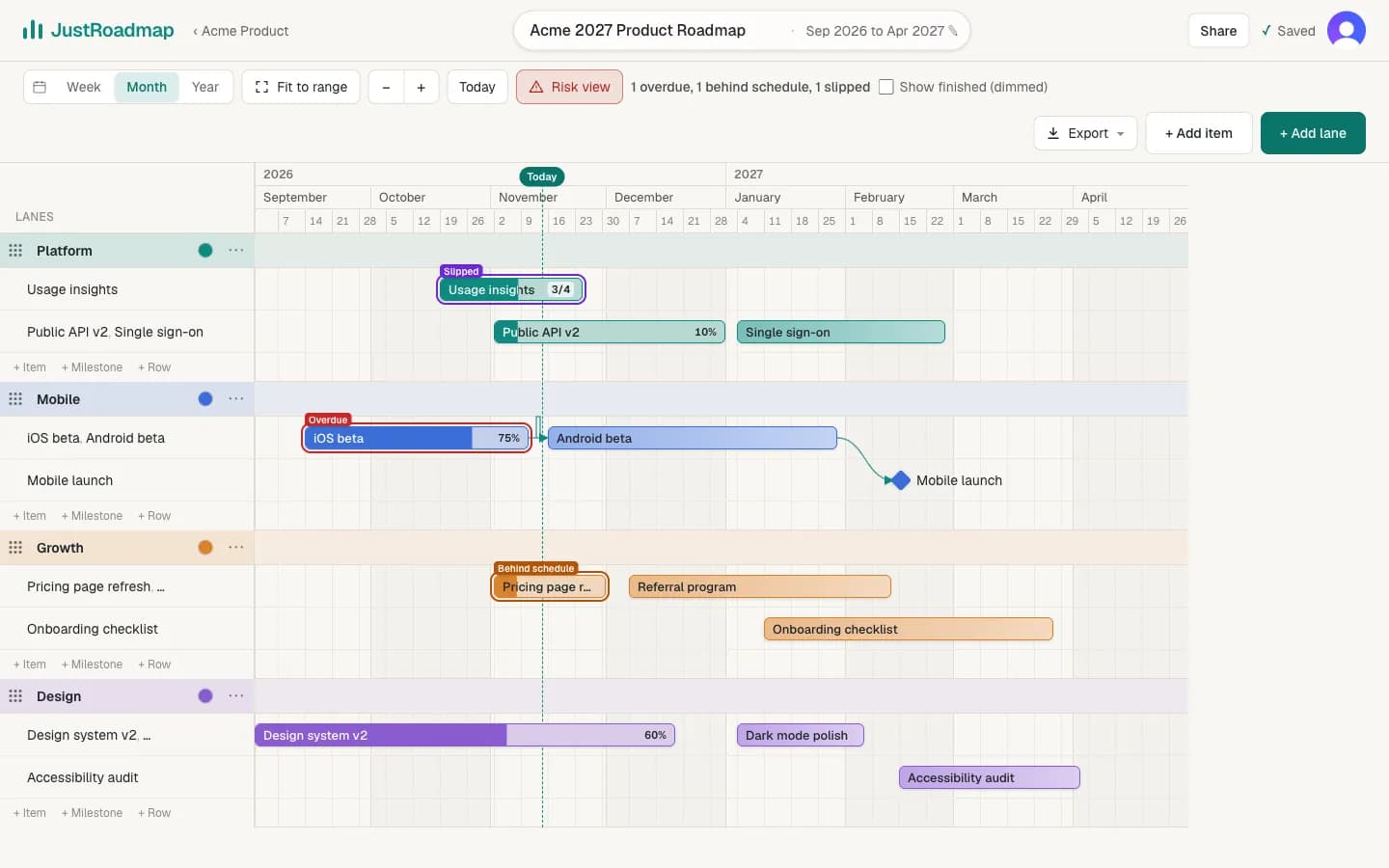
Spot the work that needs attention
One press hides finished work and labels the rest: overdue, behind schedule, slipped from its planned end, or blocked by unfinished work.
Save-conflict protection
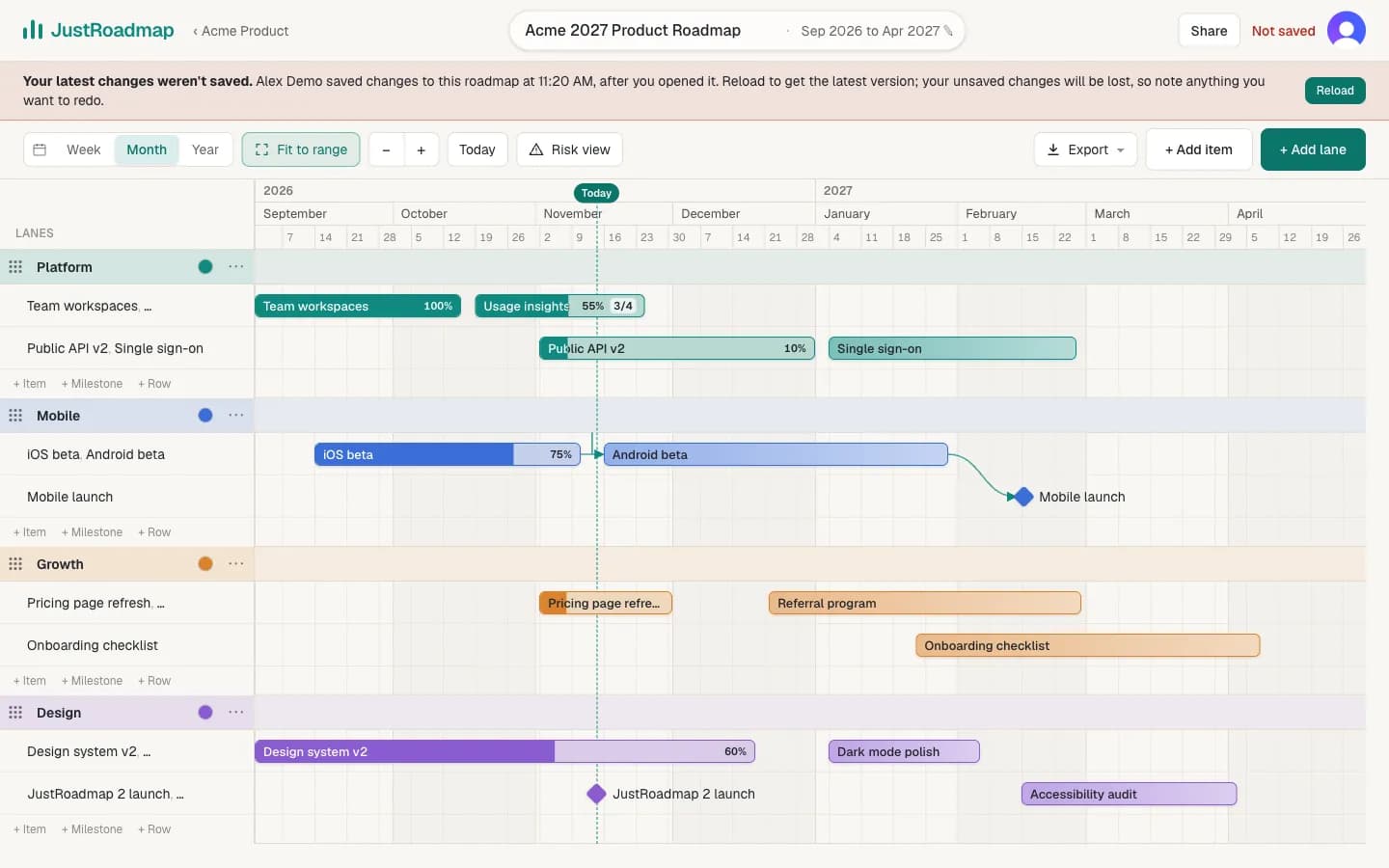
Nobody's work is overwritten silently
If someone saved the roadmap after you opened it, your save is held back and the editor says who saved and when, with a Reload button.
Export
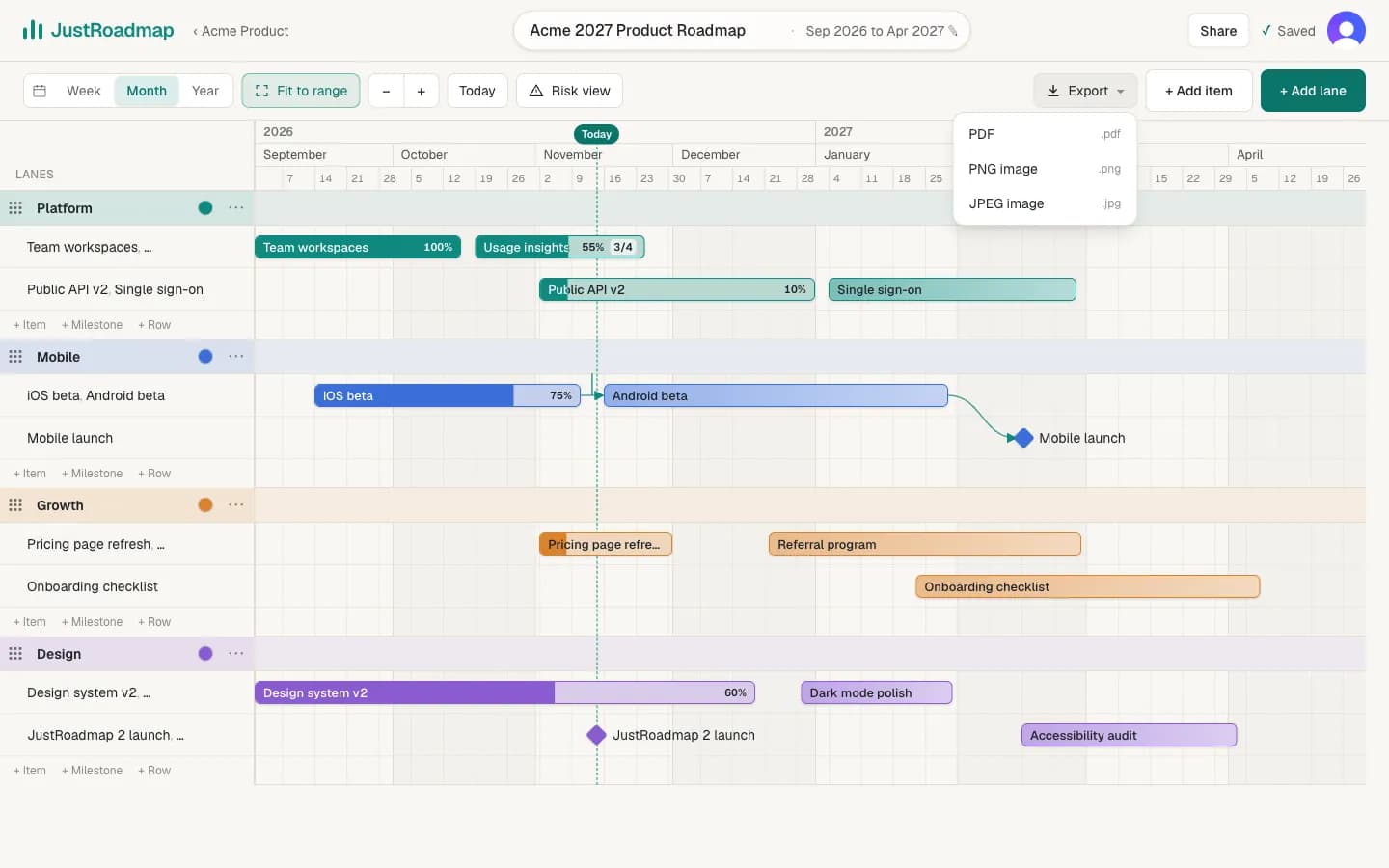
Export to PDF, PNG or JPEG
Download exactly the view you're looking at for a deck, a document or an email. Exports are made in your browser on a clean light background.
Dark mode
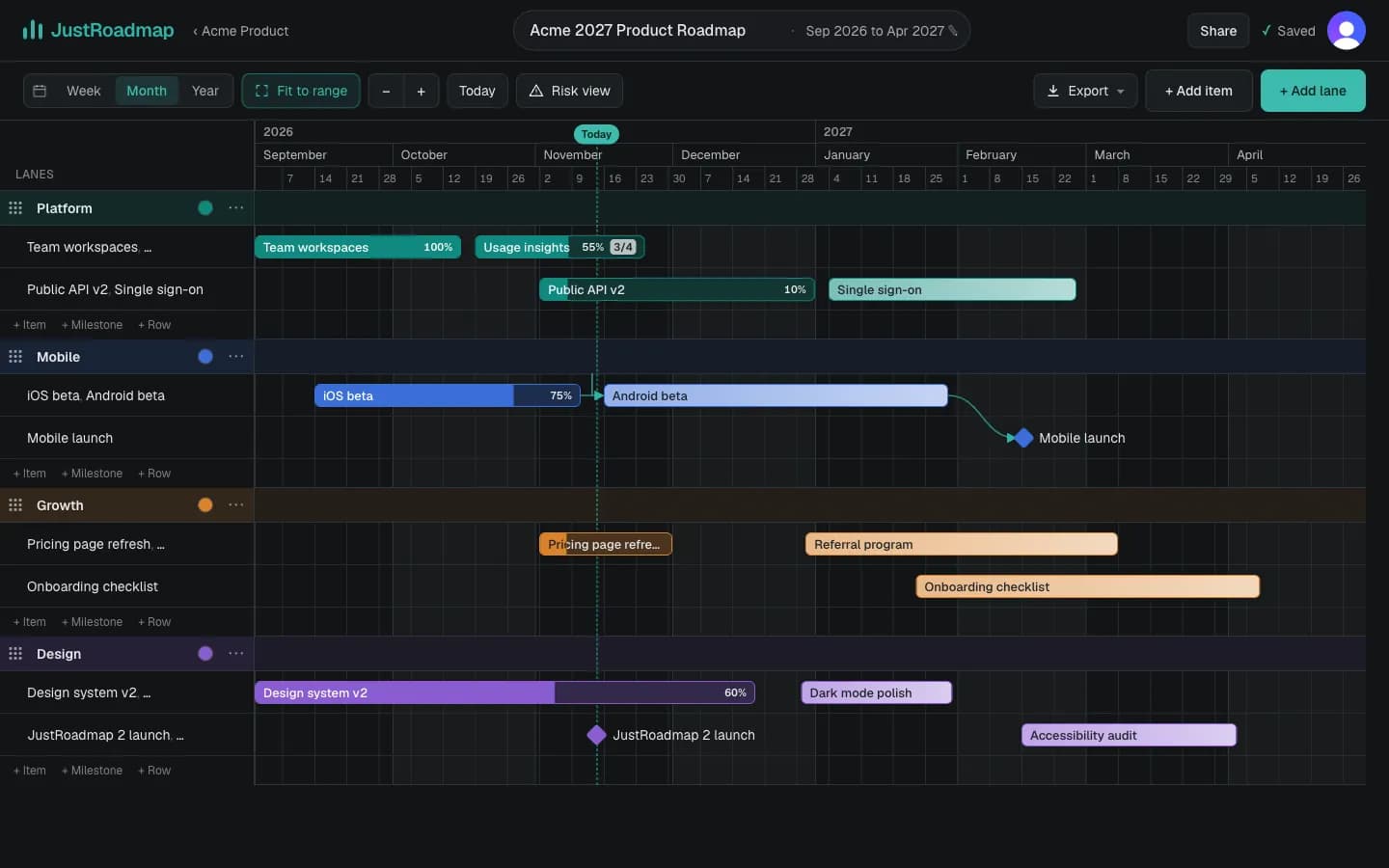
Light, dark, or match your device
Pick a theme from the footer of any page. The timeline, lanes and colors are made to read well in both.